The Time Reporting System (TRS) is a secure online timesheet application. The system integrates University of California pay policies and collective bargaining agreements. Employees enter their time, supervisors review, edit/return, and approve timesheets. Department Time Administrators (DTAs) electronically submit reported work and leave hours to the campus payroll system.
Accessing TRS
How do I access TRS?
- The direct link is https://trs.ucmerced.edu. Log into TRS using your UCMNet ID and password. TRS is available to employees 24 hours a day, 7 days a week via any Internet accessible device.
What if I don’t have a computer? How will I use TRS?
- If you do not have access to a computer at work or at home, please notify your direct supervisor. They can assist you with gaining access to TRS. Employees and students of UC Merced have access to computers at the Kolligian Library. Some departments may also have computer kiosks for your use.
I have a smartphone. Can I access TRS on it?
- Yes. You can use any device that allows you access to the Internet, such as smartphones or tablets.
Who can use TRS?
- TRS is open to Department Time Administrators (Payroll Services), Supervisors, and most staff/student employees, some academic employees/contingent workers.
I’m a work study student employee, can I use TRS?
- Yes. Work study hours can be reported in TRS.
Can I use TRS to report vacation, sick and other leave time?
- Yes. You can report most non-productive time in TRS to the nearest quarter-hour. Non-productive time includes Sick Leave, Vacation Leave, Comp Time Off, Leave without Pay (LWOP), Jury Duty, and Voting Time Off.
How do I report Holiday Pay in TRS?
- TRS automatically determines employee Holiday Pay Eligibility and includes it in the calculation of your pay. Unless you are actually scheduled to work on a holiday, you should not record any work/leave hours on holidays in TRS.
How do I report Overtime in TRS?
- Employees need only enter the actual hours they work and/or take leave in their TRS timesheets. TRS automatically determines any earned Overtime payment and/or Comp Time accrual amount.
How do I report Shift Differential in TRS?
- Employees need only enter the actual hours they work and/or take leave in their TRS timesheets. TRS automatically determines any earned SDF payment.
What does it mean when a timesheet is in “None” status?
- Timesheet status is listed as None when it has not yet been saved or submitted by you or your supervisor. Timesheets are temporary until they are saved or submitted by you or your supervisor. Timesheets will move from the Open Timesheets section of your Manage My Time tab after TRS rolls over into a new pay period.
Why/when do timesheets seem to “fall off” TRS?
- Timesheets in the following status move to "View Past Timesheet" section 3 days after the pay period ends. For instructions on how to create a timesheet for a past pay period see question, "Can I create a timesheet for a past pay period."
- Not Started
- Completed
- Timesheets in the following status remain under the "Enter Current Timesheet" section until action is taken to move timesheet to a "Completed" status.
- Saved
- Submitted to Supervisor
- Submitted to DTA
- Recalled by Employee
- Returned by Supervisor
How do I report voting time in TRS as a Biweekly Employee?
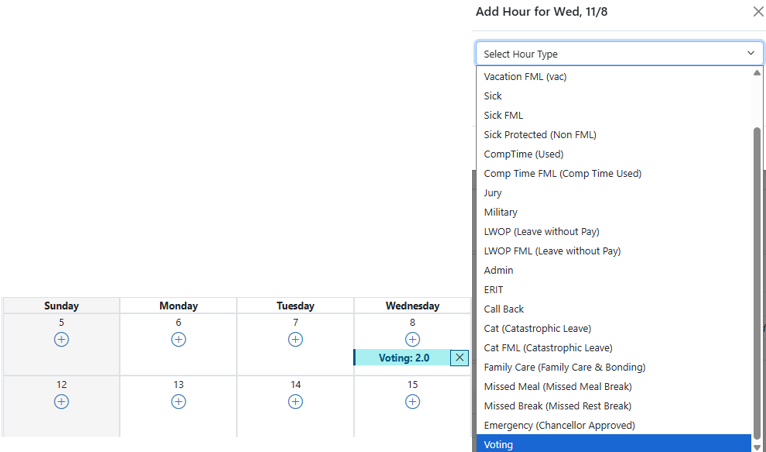
- To report voting time in TRS proceed as follows:
1. Click on the drop-down menu for the day you went to vote.
2. Click on Voting.
3. Enter the number of hours used (up to 2 hours).
4. Enter timesheet comments indicating time used to go vote.
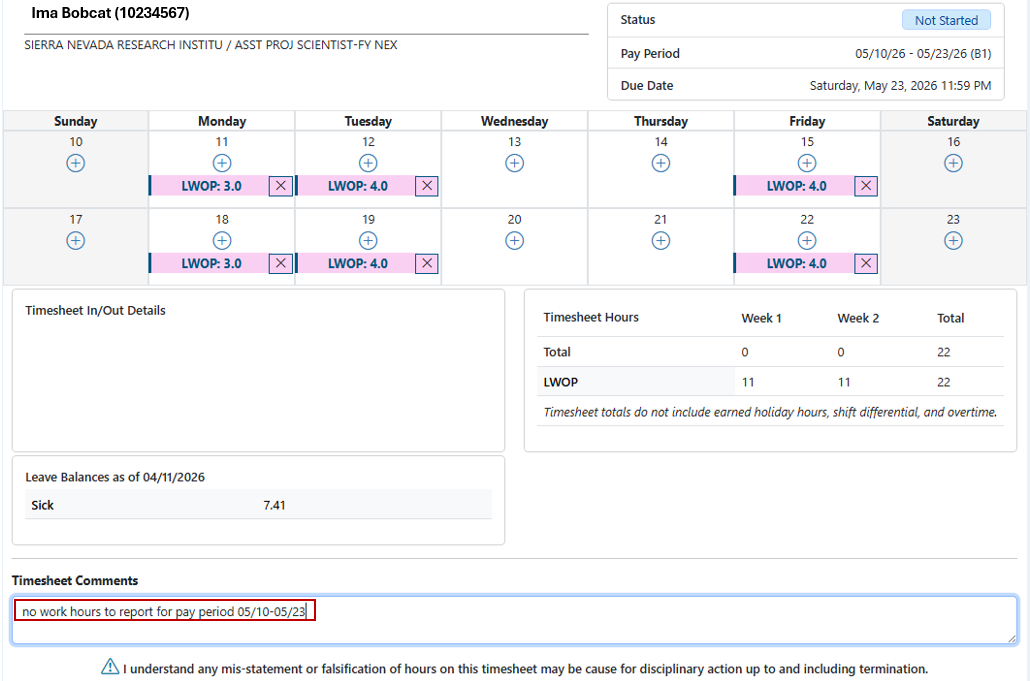
If I have no hours (work/leave) to record during a pay period, do I still need to submit a timesheet via TRS?
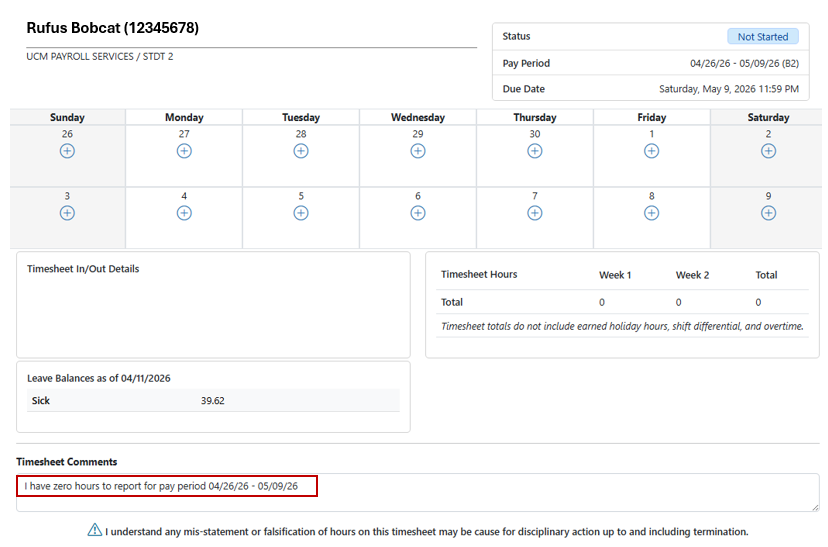
- Yes. Employees should complete timesheets whether they have hours to record or not. There are two ways that employees can submit a zero-hour timesheet in TRS:
1. All pay period days are to be left blank. Enter in a comment stating that they have no hours to report during the pay period, and submit their timesheet.
2. Enter in their regular hours using LWOP (Leave Without Pay) from the Add hours drop-down and submit their timesheet.
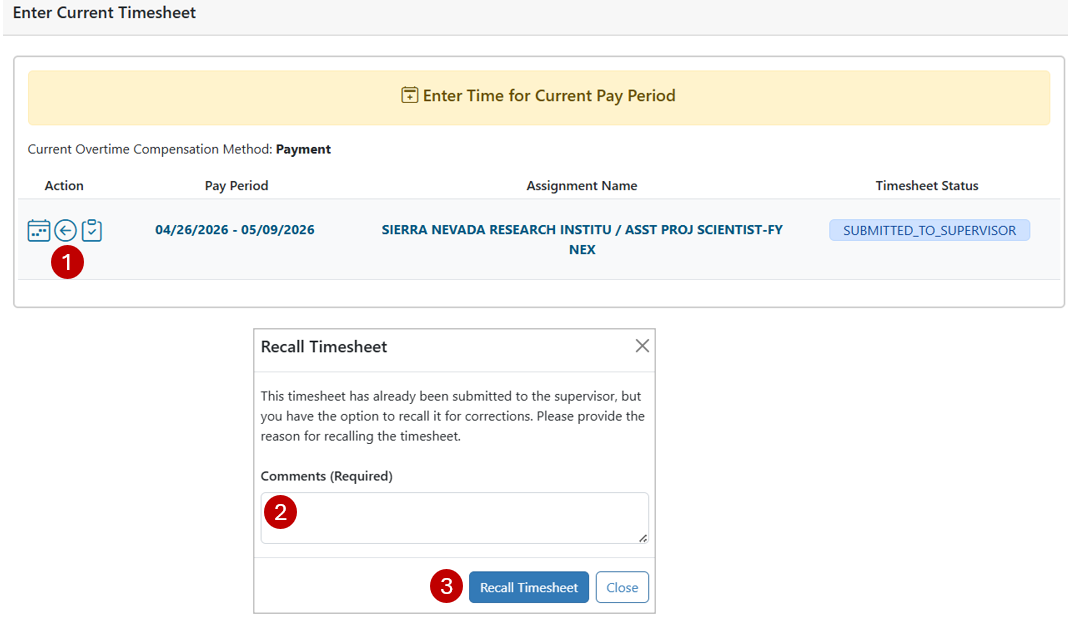
Can I make corrections to my timesheet after its been submitted to my supervisor?
- Yes. Go to the Enter Current Timesheet section of your Manage My Time tab. Under the Open Timesheets heading, you will see a Recall icon that looks like a green circular arrow in the Action column. You will be able to recall a timesheet as long as the Submitted to Supervisor status appears under the Timesheet Status column. If the status shows Submitted to DTA, Submitted to UCPath, or Completed, you will not be able to recall the timesheet. Contact your supervisor to let them know your timesheet needs to be corrected.
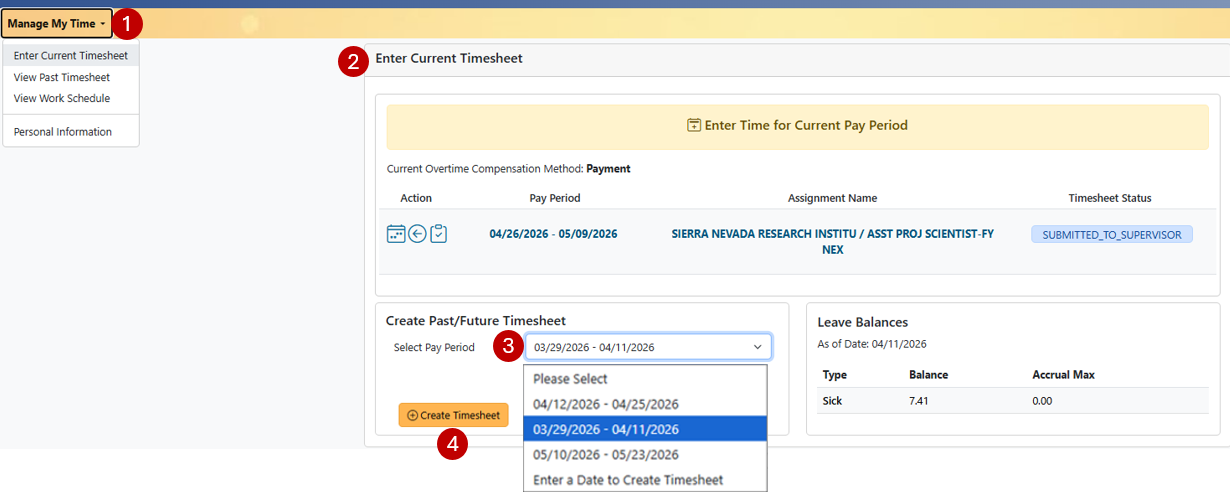
Can I create a timesheet for a past pay period?
- Yes. Go to the Enter Current Timesheet section of your Manage My Time tab. Under the Create Past Periods timesheet heading, you can select the last two pay periods in the drop-down menu. You can also use the Date field to enter any date during the desired pay period. After you've selected the pay period or date, click the Create button.
Alternative Work Schedules/Multiple Shifts/Etc.
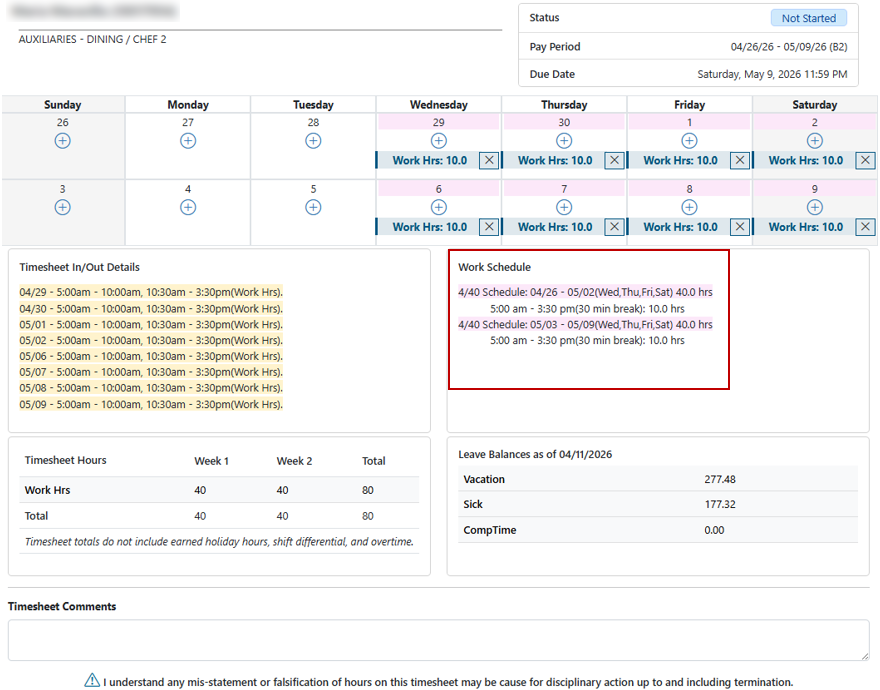
I'm approved to work a 4/40 alternate work schedule. Can I use TRS to record my work hours?
- Yes. Approved 4/40 alternate work schedules can be recorded in TRS.
Sometimes I work two shifts on the same day. Can I use TRS to record my work hours?
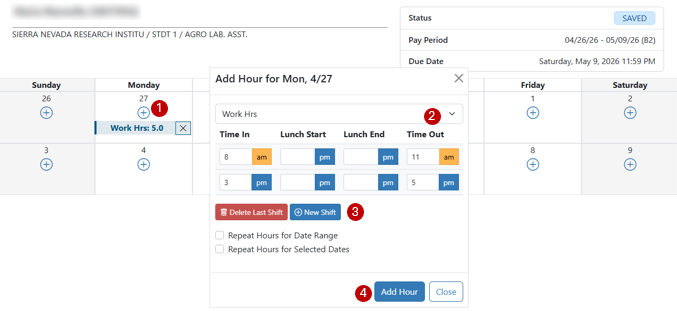
- Yes. TRS has a function that will allow you to enter multiple shifts in a work day, if needed.
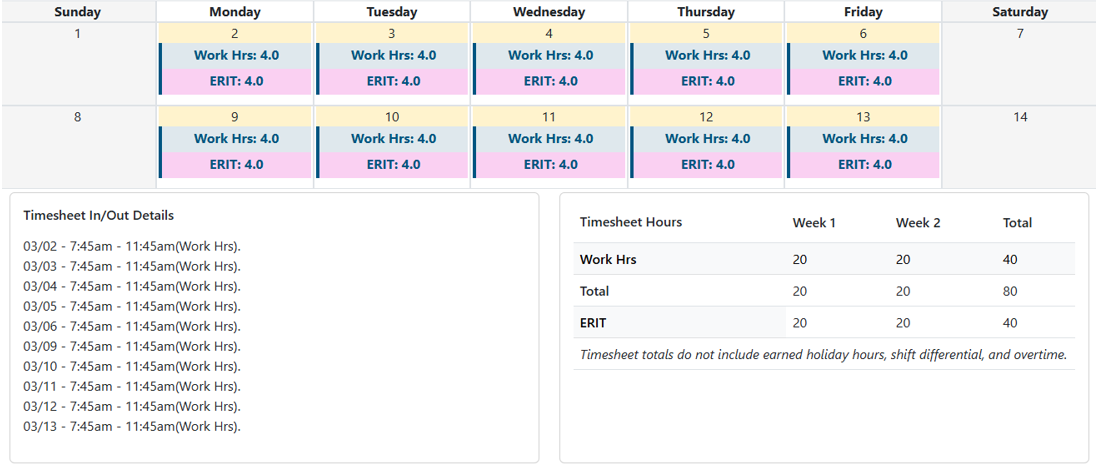
I am considering participating in the Employee-Initiated Reduction in Time (ERIT) Program. Will I still be able to report my time via TRS?
- Yes, but if you are a Non-Exempt Employee, the way you report work/leave hours via TRS may change. Example, your pre-ERIT percentage of employment was 100 percent (40 hours/week). You come to an agreement with your department to implement a 20 percent ERIT reduction (less 10 hours/week). You will continue to report the actual hours you work and/or take leave in TRS. Report your work/leave hours in TRS based on an 80 percent employment percentage (30 hours/week). In addition, report the remaining 20 percent (10 hours/week) in TRS to equal your pre-ERIT 100 percent employment percentage. This is done by selecting ERIT from the drop-down menu in your timesheets.
Supervisor Roles and Responsibilities
What is a Primary, Backup, and/or Optional Backup Supervisor?
- A Primary Supervisor (mandatory) is assigned to an employee. The person directly responsible for overseeing the employee's work schedule and ensuring hours reported by the employee are accurate. Primary Supervisors are also responsible for approving timesheets submitted by the employees to whom they are assigned in TRS.
- A Backup Supervisor (mandatory) oversees an employee's work schedule and approves timesheets in the absence of the Primary Supervisor.
- An Optional Backup Supervisor can be assigned to oversee/approve in the absence of both the Primary and Backup Supervisors.
How can a department representative request an employee's Primary, Backup, and/or Optional Backup Supervisor update in TRS?
- To change the TRS supervisor(s) for a single employee, submit the Individual TRS Approvers/UCPath Reports To Update webform.
- To change the TRS supervisor(s) for multiple employees reporting to a specific Supervisor, submit the Mass TRS Approver Change Request webform.
An employee's TRS Supervisor is the person assigned to review and approve an employee's timesheet and is not necessarily the same person as the UCPath Reports To. The UCPath Reports To indicates who a position reports to, such as a manager, supervisor, or department lead. Submit a Payroll Inquiry if you need the list of employees reporting to a specific TRS Primary, Backup, and Optional Backup Supervisor.
For UCPath Reports To updates on Academic Employees, please contact Academic Personnel Office (APO).
What happens if a Primary Supervisor assigned to an active Assignment in TRS separates from the University?
- The employee will not be able to save or submit timesheets if the Primary Supervisor is missing or separates from the University. Please complete the appropriate TRS Approver Update form to avoid interruption to an employee’s ability to submit their timesheet.
How can Supervisors request the return of an employee timesheet that has a COMPLETED status?
- Supervisors can submit their request to Payroll Services Department Time Administrators (DTA) using the Payroll Inquiry: Payroll Services Inquiry
How do I Edit an employee Timesheet?
Can Supervisors create/edit/submit their employees' timesheets?
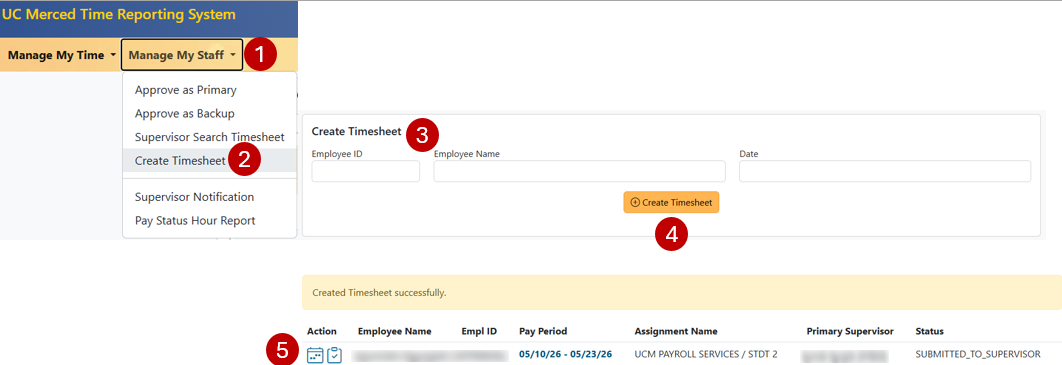
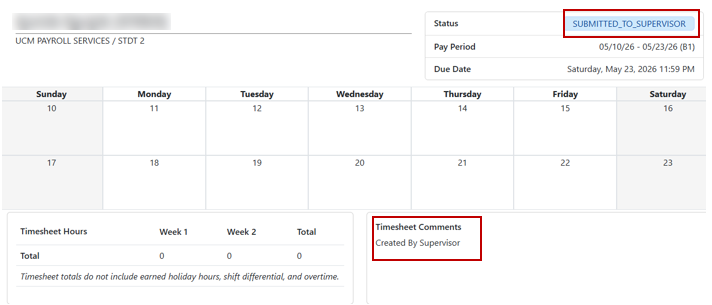
- Yes. Supervisors can create, edit, and submit timesheets on behalf of their employees in TRS.
-
Go to the Manage Timesheets section of your Manage My Staff tab.
-
Select the Create Timesheet button.
-
Enter the employee information and date within the desired pay period.
-
Click the Create Timesheet button.
Supervisors can use the create timesheet icon (represented by a plus sign) from the Approve As Primary/Approve as Backup for current pay period timesheets. Supervisors can also edit/submit their employees' TRS timesheets currently in Saved, Recalled By Employee, or Returned By Supervisor. With this action, the Supervisor is prompting the system to have the employee’s timesheet go to Submitted to Supervisor status.